
What are organisations?
View the full renewable energy project portfolio of developers, owners, contractors and suppliers in RenewMap, see who they work with, and track acquisitions, subsidiaries and rebrands across Australia and New Zealand.
RenewMap tracks the organisations involved in energy projects across Australia and New Zealand, from verified government, regulatory and industry sources. It’s updated continuously as projects progress, change ownership or add new partners.
An organisation may be involved in a project as a:
- Developer or owner
- Major or minor contractor
- Equipment manufacturer (OEM) or supplier
- Consultant or adviser
- Network service provider
- Power purchase agreement (PPA) offtaker
Organisation profiles bring this information together so you can quickly understand a company’s role, activity, partners and project portfolio across the market. Use them to understand a company’s pipeline, map relationships across developers and contractors, or build context before a conversation.
To find the most active organisations in a role, such as the largest developers in NSW, see Sorting organisations.
How to find organisations in RenewMap
You can find an organisation from search, from a project, or from either table.
From search
- Select the search bar at the top of the platform, or press ⌘K (CtrlK on Windows).
- Type the organisation’s name. Matching results appear as you type.
- Select the organisation to open organisation details.
From a project
Every project panel shows the organisations involved in it.
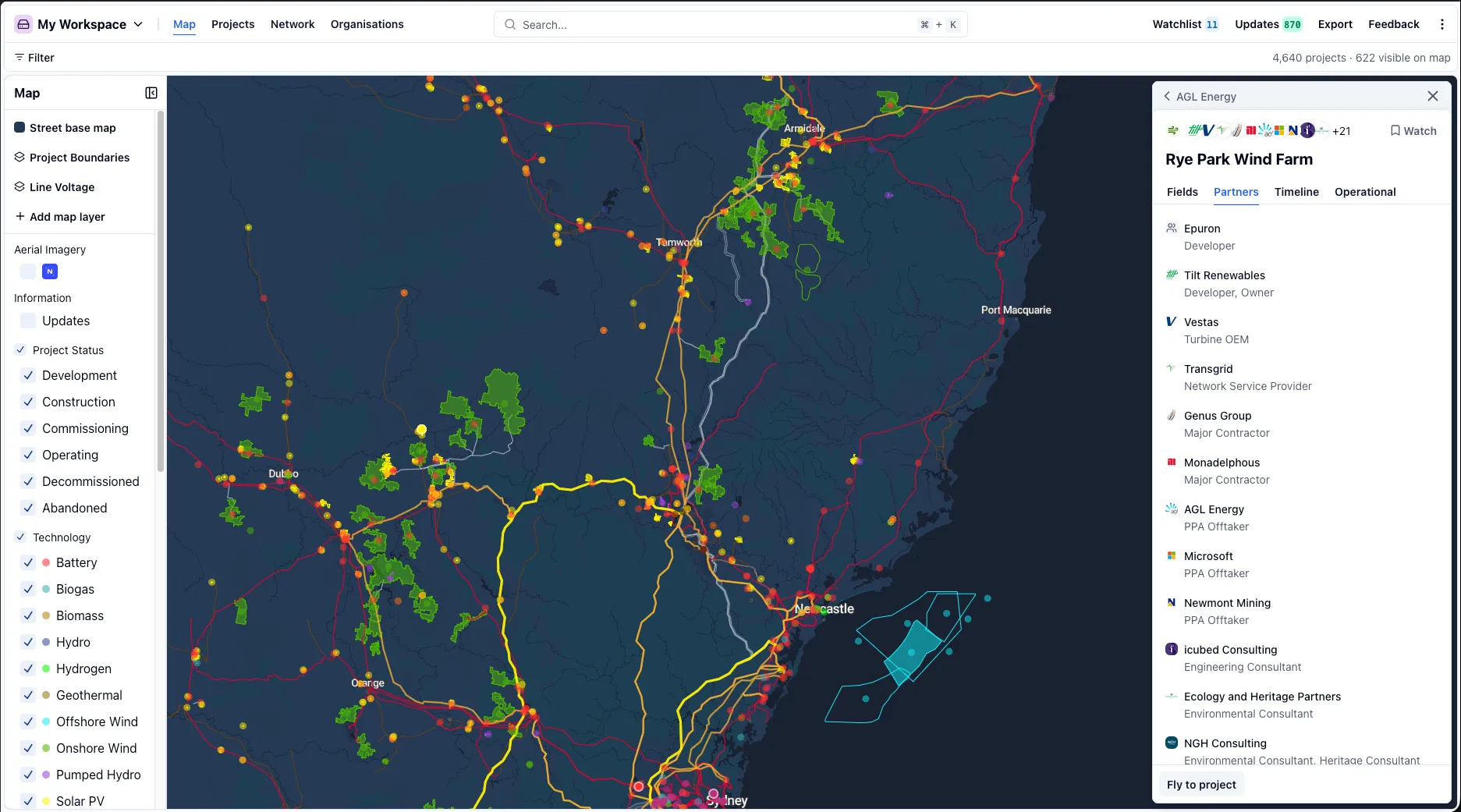
- Logos in the header: the row of logos at the top of the panel shows the project’s organisations. Select the logos to open the project’s Partners tab.
- Partners tab: every organisation on the project, with all of its roles on that project.
- Fields tab: role fields such as Developer list each organisation by name. Where a role has more than two organisations, the rest are behind a button such as +3.
Select an organisation to open organisation details.
Use the back arrow at the top of the panel to return to the project.
From the Projects table
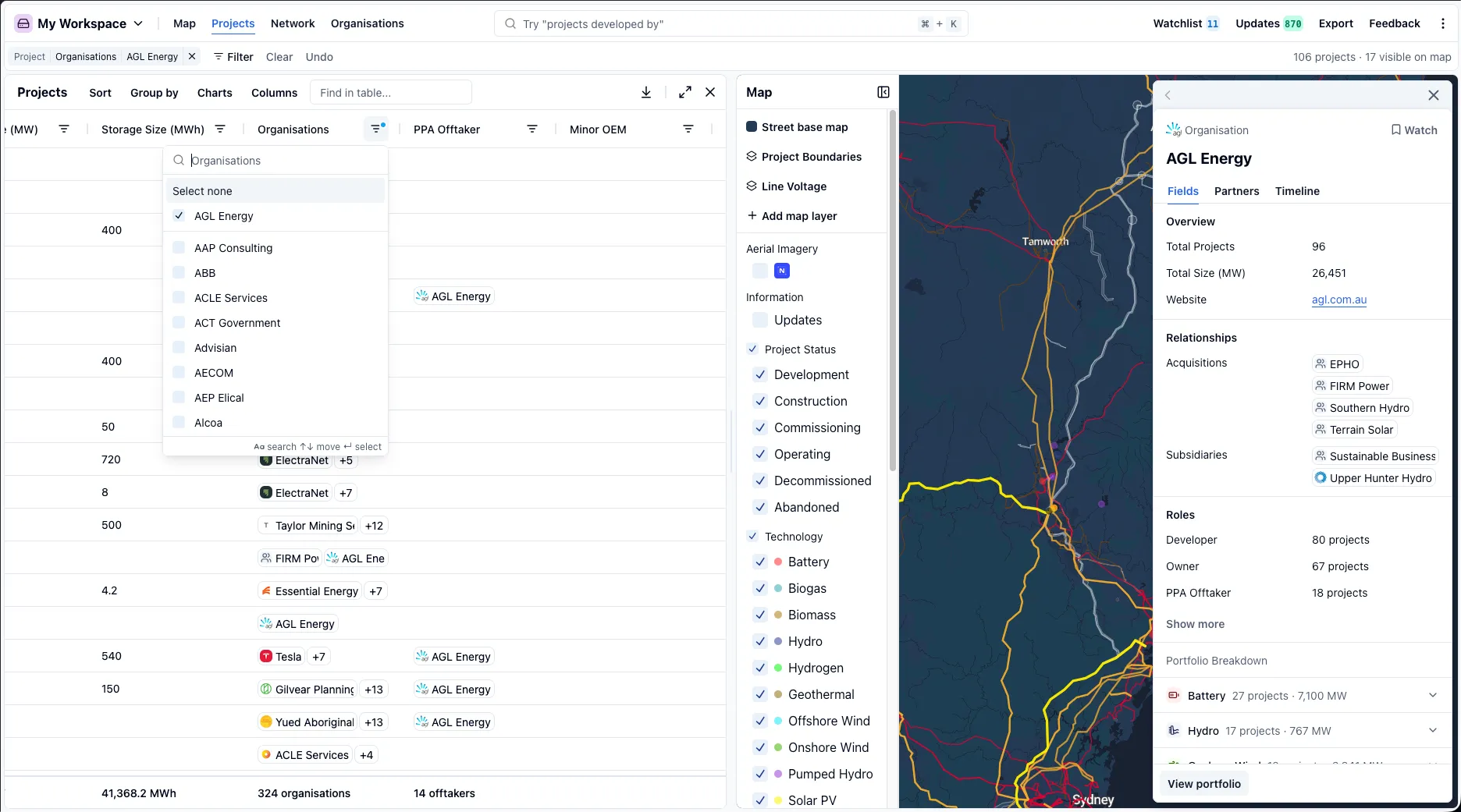
Select Projects in the header, then select an organisation’s name in the Organisations column of any row.
To find a particular organisation’s projects, select the filter icon in the Organisations column header and search for it. Search rather than scroll: the list shows a subset of organisations, not all of them.
From the Organisations table
Select Organisations in the header, then select any row to open organisation details. The Organisations table is also where you can sort organisations by size, activity and progress.
The organisation panel
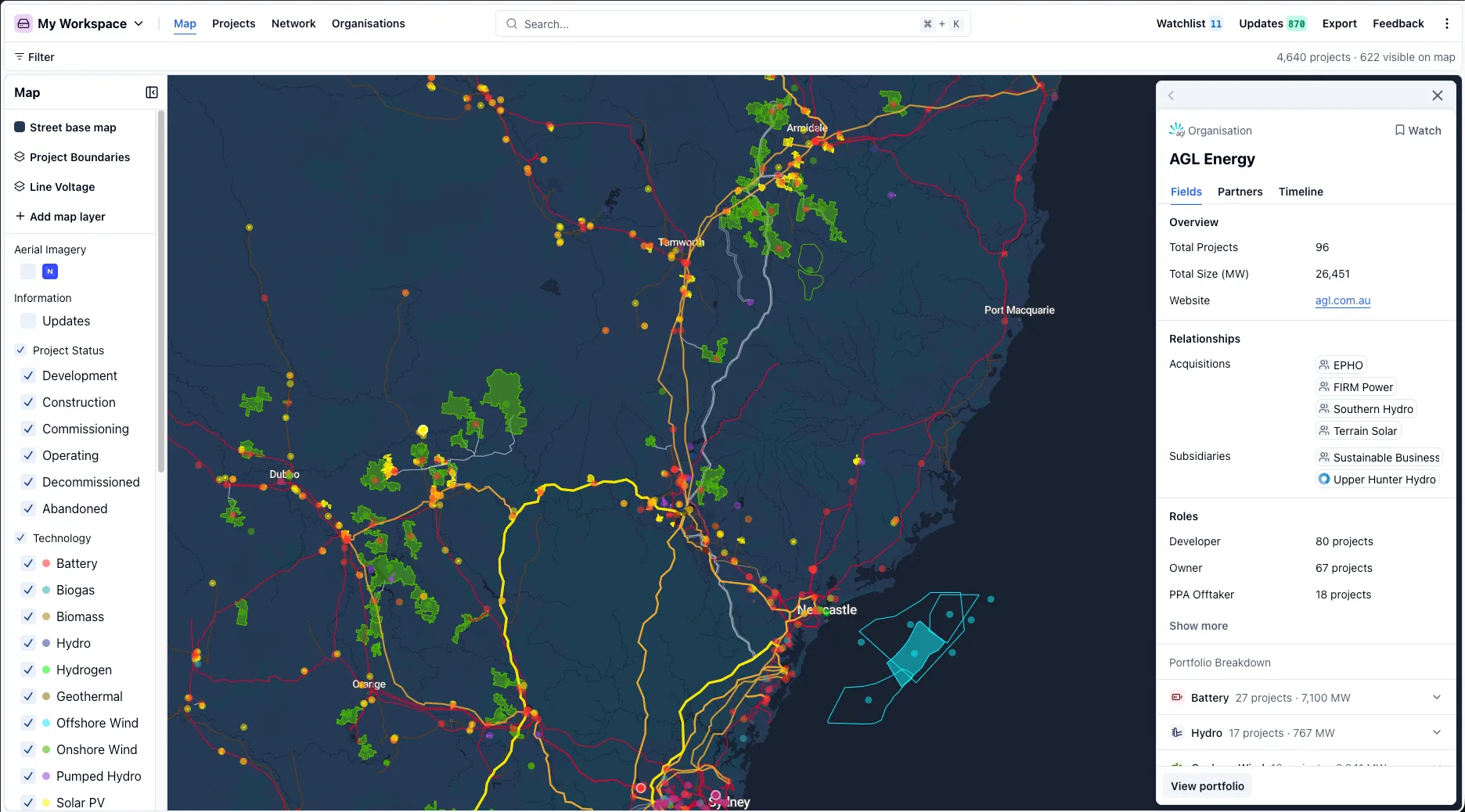
The organisation panel has three tabs: Fields, Partners and Timeline. Select View portfolio at the bottom of the panel to see all of its projects in the table and on the map; see View an organisation’s portfolio.
Fields
The Fields tab summarises the organisation:
- Overview: total projects, total capacity (MW) and website.
- Relationships: organisations this one is connected to, such as its parent company or a former name. Only shown when recorded; see Relationships.
- Roles: each role it holds and on how many projects. Select Show more to see every role.
- Portfolio Breakdown: projects grouped by technology, plus Power Purchase Agreements and Abandoned. Expand a group to see its largest projects, then select the View button to open the whole group in the table.
Partners
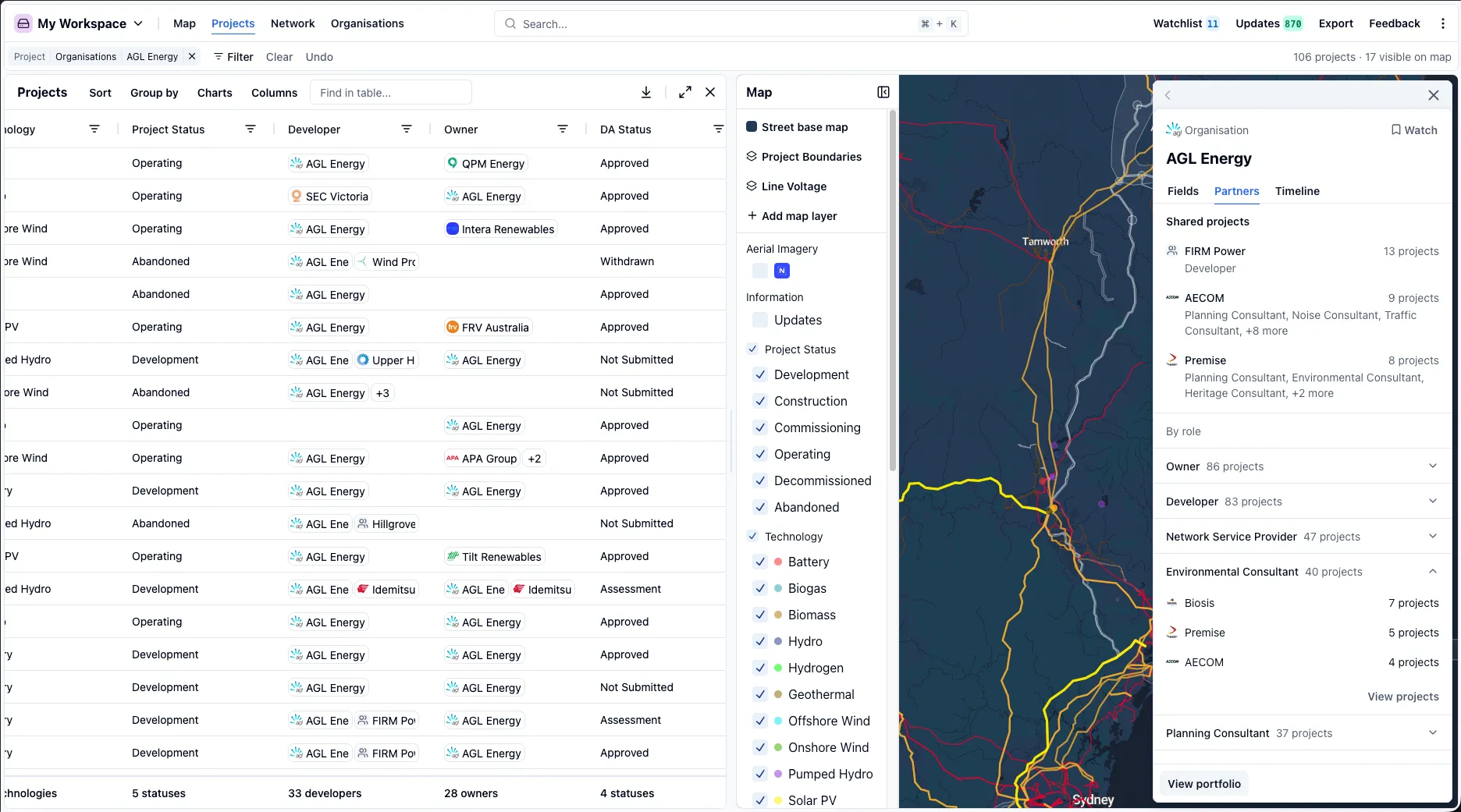
The Partners tab shows who the organisation works with on projects:
- Shared projects: its three most frequent partners, with the roles they held.
- By role: for each role on its projects, such as Turbine OEM or Major Contractor, the organisations that most often filled it. Select View projects to open those projects in the table.
Select a partner to open organisation details.
Any View button in the panel replaces your current filters. Select Undo next to your active filters to get them back.
Timeline
The Timeline tab lists updates about the organisation, such as being added to a project, newest first.
Watch an organisation
Select Watch at the top of the panel to add the organisation to your watchlist. You will receive emails for updates related to organisations on your watchlist.
View an organisation’s portfolio
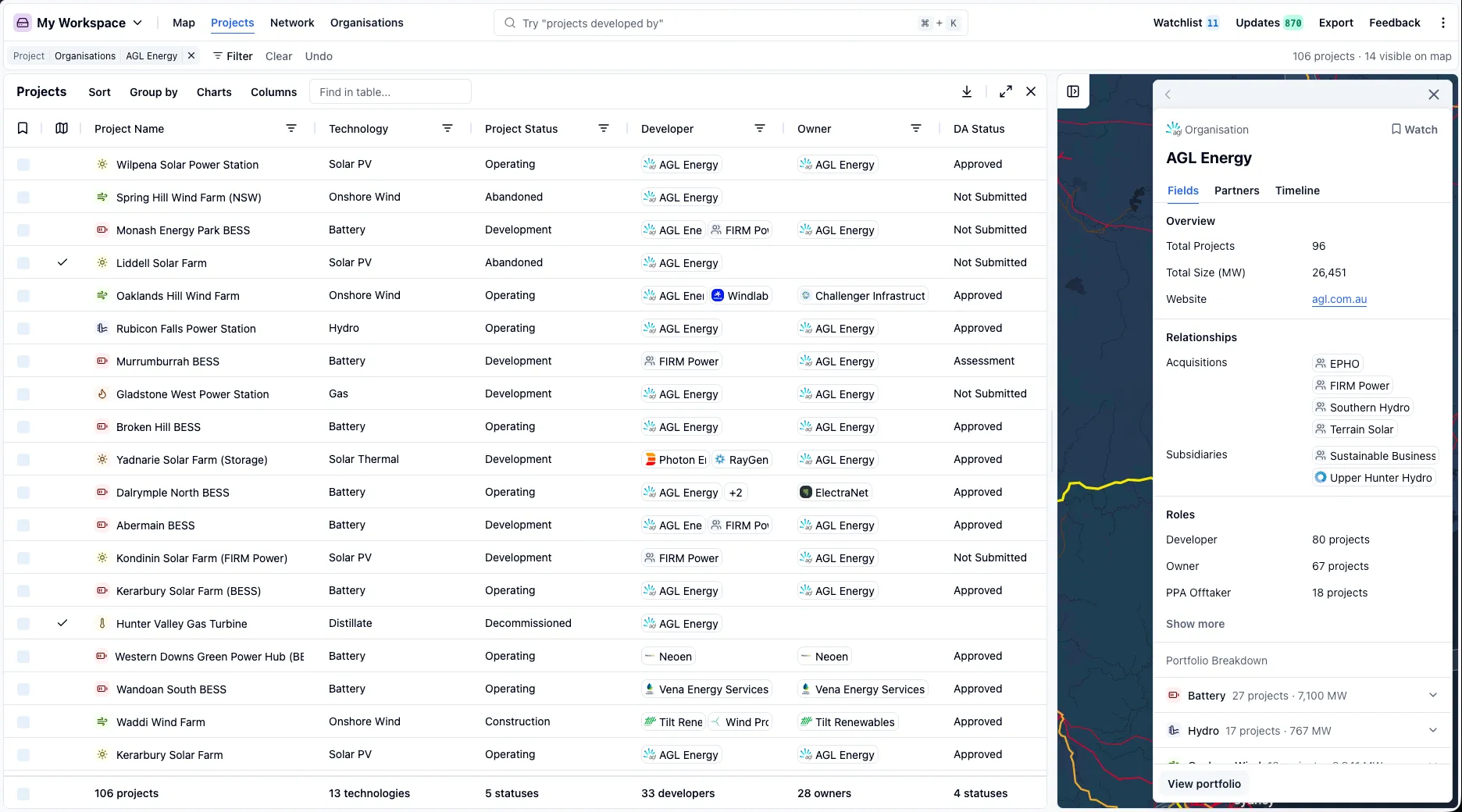
Select View portfolio at the bottom of the organisation panel. RenewMap:
- Opens the Projects table, filtered to the organisation’s projects.
- Adds columns for the roles the organisation holds.
- Zooms the map to fit those projects.
View portfolio replaces your current filters. Select Undo next to your active filters to get them back.
Select Map to see the portfolio on the map, where you can:
- See where the organisation is active geographically.
- Identify clusters of projects across regions.
- Understand activity across renewable energy zones and transmission infrastructure.
Relationships
RenewMap records how organisations relate to each other. When a company is acquired, owned by another or changes its name, the link is recorded rather than the companies being merged, so you can follow it through acquisitions, ownership changes and rebrands.
Select a related organisation to open organisation details.